Installing the
Software
This topic includes the following sections:
Before
You Start
Install the CXA-m PXIe signal analyzer software
|

|
-
Administrator privileges will be needed for software and hardware installation.
-
Refer to the N7875A Calibration Application Readme.txt file for the minimum version of the CXA-m PXIe signal analyzer software required to run the calibration software.
-
Complete software installation instructions can be found in the M9290A CXA-m PXIe signal analyzer Getting Started and Troubleshooting Guide available at http://www.keysight.com/find/cxa-m_software.
|
Before running the N7875A Calibration Application, the software for the M9290A CXA-m PXIe signal analyzer must be installed. This installation should include the following:
-
Keysight Technologies IO Libraries Suite (IOLS) — which includes the Keysight Technologies Connections Expert. This software is included with your instrument shipment (CD part number E2094-60003), and is also available at www.keysight.com/find/iosuite. This software must be installed first.
-
Instrument software — which includes the , device drivers (IVI-C and IVI-COM) and documentation for the M9290A CXA-m PXIe signal analyzer.This software is included with your shipment of the CXA-m PXIe signal analyzer (CD part number M9290-90008), and is also available at http://www.keysight.com/find/cxa-m_software.
Module and Chassis Requirements
The M9290A CXA-m PXIe signal analyzer will be installed in a PXIe chassis. Complete installation instructions can be found in the M9290A CXA-m PXIe signal analyzer Getting Started and Troubleshooting Guide available at http://www.keysight.com/find/cxa-m_software.
If you are using a remote controller and have installed the interface cable, you must power up the chassis BEFORE you power up the PC. When you power down your chassis, shut down the PC before you power down the chassis. Refer to the diagram below.
Keysight Technologies M9018A Chassis Power Up Sequence
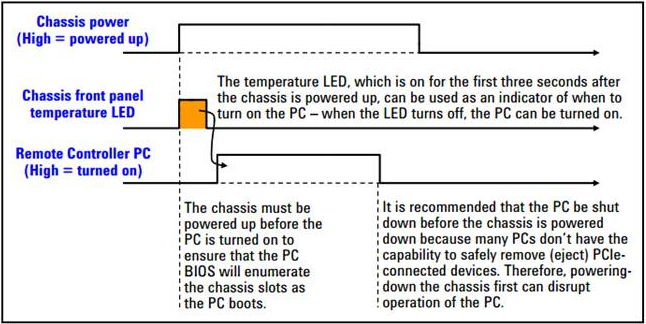
It is recommended that your remote controller components match the manufacturer of your chassis to minimize compatibility issues.
PXI hardware does not support hot-swap capabilities (changing modules while power is applied to the chassis). Before installing or removing the module to/from the chassis, power off the chassis to prevent damage.
Embedded Controller
If you are using an embedded controller, complete the following steps:
-
Install the embedded controller module into the compatible chassis. The Keysight Technologies M9036A PXIe Embedded Controller and Keysight Technologies M9018A PXIe Chassis are recommended. Refer to the embedded controller and chassis documentation for further details.
-
Connect peripherals (mouse, keyboard, monitor).
-
Power up the chassis.
Recommended Practices for Module/Chassis Temperature Control
-
Use slot blockers and EMC filler panel in empty module slots to assure proper operating temperature.
-
At ambient temperatures above 45° C (113° F), set the chassis fan to High.
-
Position the chassis so that there is ample space between the chassis fan intake and exhaust vents. Blockage by walls or obstructions affects the air flow needed for cooling. (Refer to the chassis documentation for more information about cooling.)
-
A minimum of 50 mm (2 inches) of clearance should be provided in the front, rear, and sides of the chassis for ventilation. Depending on module power consumption, clearance may be needed below the chassis to accommodate the air intakes on the bottom of the chassis.
Installation/Upgrade Instructions
Installing Over Previous Versions
Refer to the Readme.txt file for information on the
compatibility of this package with previous versions of the application
and the Test Management Environment (TME) test executive.
System Requirements
Refer to the Readme.txt for information on the minimum system requirements to run this application.
There are two ways to install TME and its applications:
-
Network
Installations — Equipment and test data information is stored in a
central location (the TME Server). This data is shared
among a set of TME Clients. Multiple test stations
can then have access to this central information.
-
Local Installations
— Everything is installed on one PC
Network Installation
In a network installation, order information is stored centrally and
can be accessed by any TME client in the network. This
allows you to combine data from tests that were run on multiple stations
into a single report. Equipment data and order information are also accessible
from any station.
|
|
-
The installation of the
application network data must take place on the same PC that installed
the TME network data. To set up a new TME
network, please see the instructions in the TME help
system.
-
If TME
is setup as a network installation, the application will automatically
be set up as a network on that machine when the installation is executed.
The application server must be installed before any clients can be installed.
-
TME client
must also be installed on all machines intending to run this application
as clients of the network.
|
To install an application on a network, follow these steps:
-
Find the PC where the TME network
was installed (Shows “TME Server” in Programs and Features).
-
Run Setup.exe for the application
on that PC. This will install all networked components for that application.
-
Install application clients:
or
Local Installation
On a local installation, all application data is stored
on the target PC. TME must be installed on the target
PC before the application installation can occur. Once TME
has been installed as a local installation, the application will automatically
install locally when executed. Order information, test results, and equipment
data will not be shared with other users.
Uninstall Procedure
To remove pre-E.01.00 versions of TME and its applications
before installing a newer version, please refer to Installing Over Previous Versions.
|

|
If you uninstall TME
completely or uninstall any TME
application, you will lose the data associated with those applications.
Create any reports needed and save them as PDF files
before you perform any uninstallation of that product.
|
-
To uninstall a previous
version of TME, please see Installing
over Previous Versions.
-
To uninstall TME or any TME application, select that
package from Programs and Features on the Control Panel.
Uninstall of Network Install
To uninstall an application client, select that package
from Programs and Features on the Control Panel and and click Uninstall.
|
|
Data will not be lost if only a client is
uninstalled. Other clients will still have access to
the data in the network.
|
To uninstall an application server:
-
Follow the directions above to uninstall
all application clients first.
-
On the PC where the server installation was performed,
select the application server from Programs and Features on the Control
Panel and click Uninstall.
Uninstall of Local Install
To uninstall an application local installation, select
that package from Programs and Features on the Control Panel and click Uninstall.
